Shade Sail design software...no CAD required!
How to use MPanel Shade Designer and Awning Composer from Trivantage
Meliar Design, Lower Cwm Barns, Llanafan Fawr, Builth Wells, Powys, Wales, UK, LD2 3SG
Phone: 01597 860291 www.meliar.com info@meliar.com
This guide will demonstrate how to create a sail and display the shadows for your shade sail, at
a specified place and at different times.
MPanel Shade Designer Version 3.0 and Awning Composer were used.
To request a demo of MPanel Shade Designer go here.
To download a trial version of Awning Composer go here.
First, open Awning Composer. After you open Awning Composer, roll over the Add Object menu.
Select the dropdown menu that says Open fromMPanel Shade Designer.
Awning Composer® and Tri Vantage® are registered trademarks of Glen Raven, Inc. Copyright © 2013
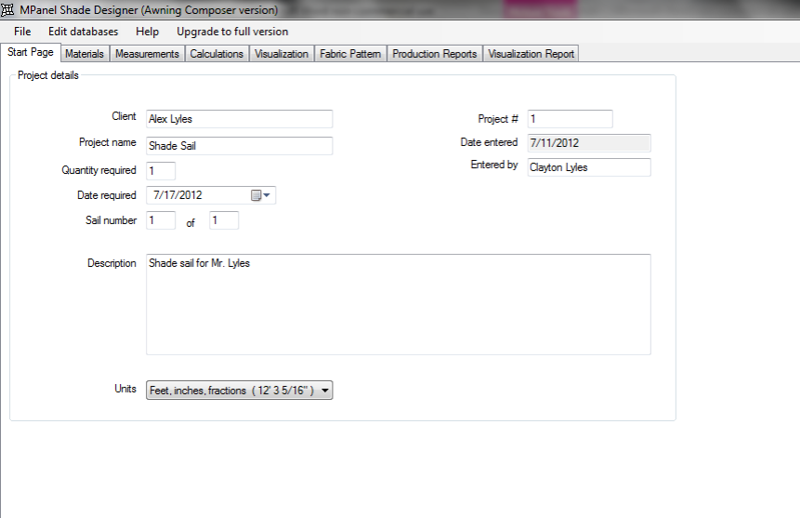
MPanel Shade Designer will automatically open. On the first page, enter all the information
related to your project. Be sure to set the units that you want to work in.
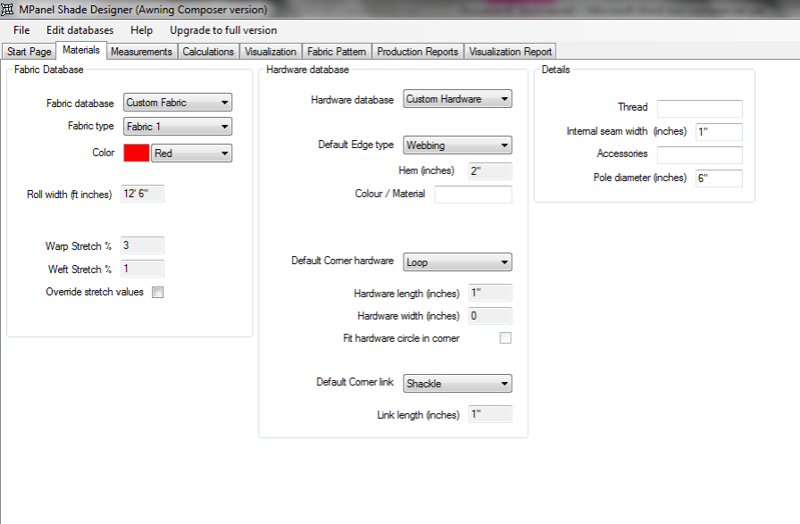
Go to the next page called Materials, then enter the type of fabric you would like, and the
type of hardware that will be used with the sail.
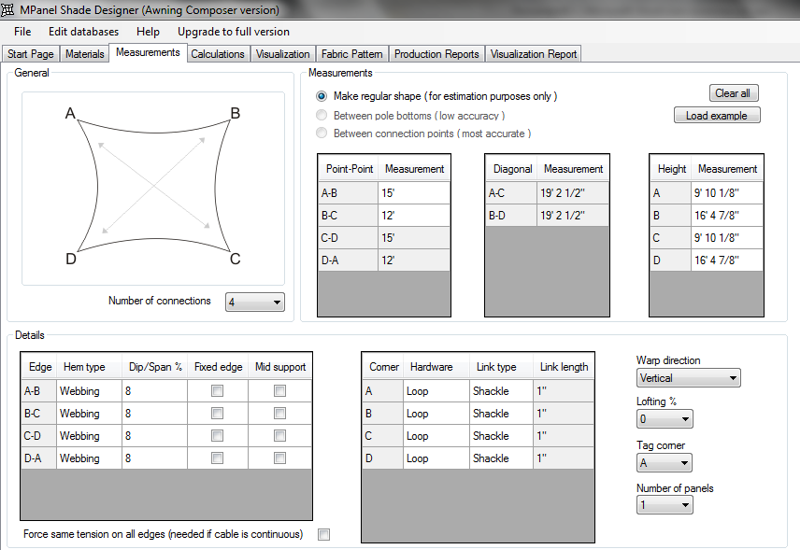
On the Measurements page enter the measurements for the sail shape. In the Awning Composer version
of MPSD, you will only be able to make basic designs. With the full version of MPSD, you will be able
to make all types of designs.
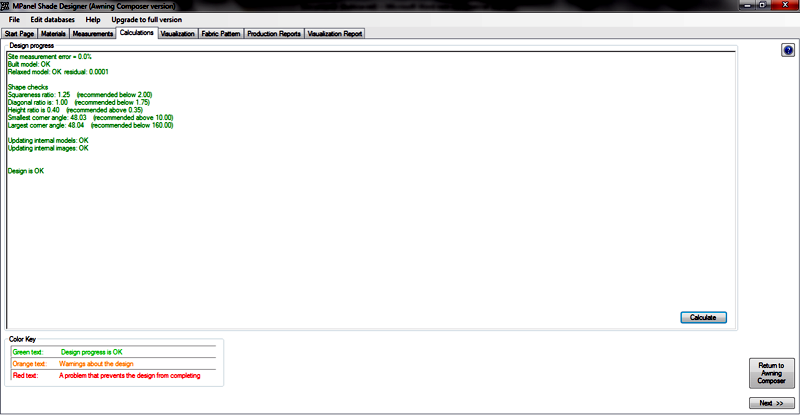
To calculate the design, click the Calculate button. The program will determine if your measurements are
reasonable . If the measurements are not consistent then the program will warn you.
You might also see a warning about the overall shape of the sail, to help you design a good sail shape.
From here, you can either return to Awning Composer, or continue in MPanel Shade Designer to have a
look at what your sail will look like.
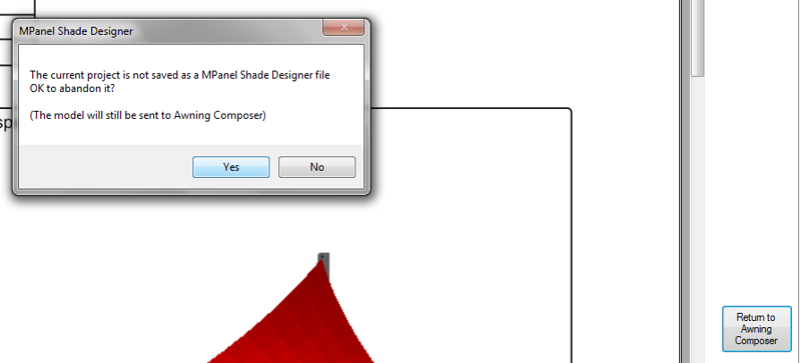
If you want to return to Awning Composer, you will need to click the Return to Awning Composer
button.
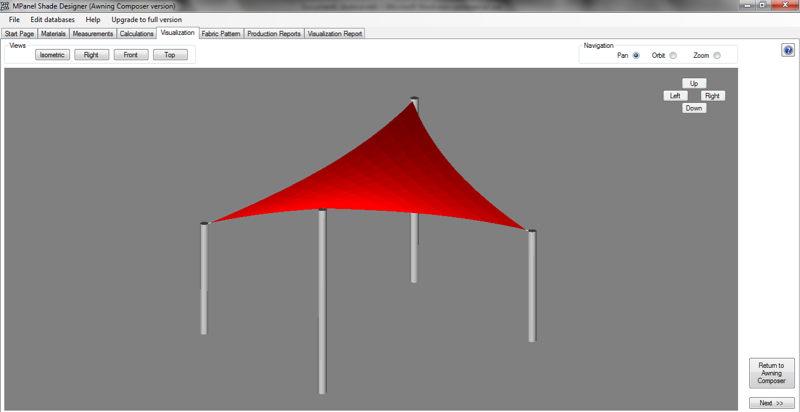
If you do continue on using MPanel Shade Designer, this is what the Visualization page will
look like. You still have the option to Return to Awning Composer from this menu.
The Fabric Pattern page will show you the exact measurements of your sail panels in the full
version of MPanel Shade Designer. But in the Awning Composer version the panels are not
created, a sample set of measurements are shown instead.
Again you can always Return to Awning Composer.
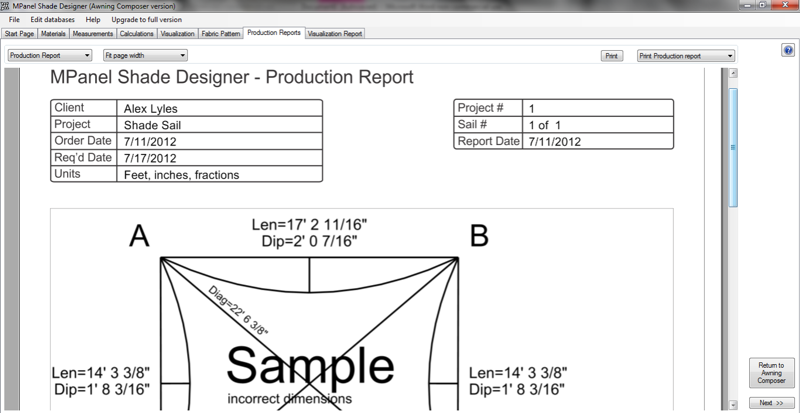
The Production Report menu will give you printable report that is used in production.
But again, the drawing will only be a sample with the Awning Composer version of MPanel
Shade Designer, and the printing is disabled.
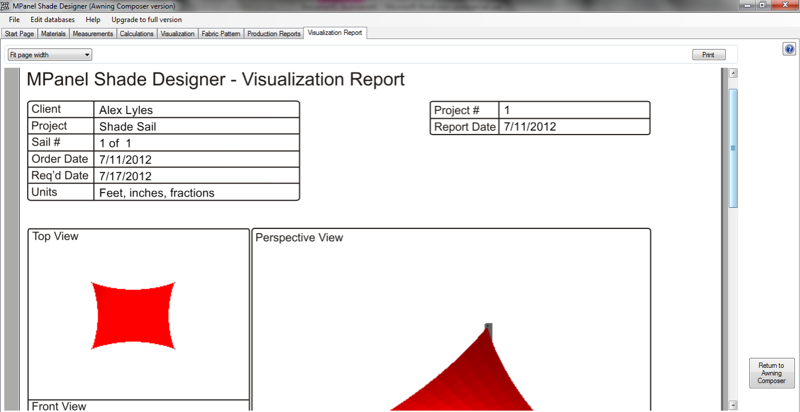
The Visualization Report will show all the different views of your sail. This can be shown to
a prospective customer.
To return to Awning Composer, you can click the Return to Awning Composer button.
If you wish to save your design in MPanel Shade Designer, just select File Save As. This
would let you re open the design in MPSD, and perhaps change a pole height.
If you only want to see your sail in Awning Composer, using the Return to Awning
Composer button is your best option.
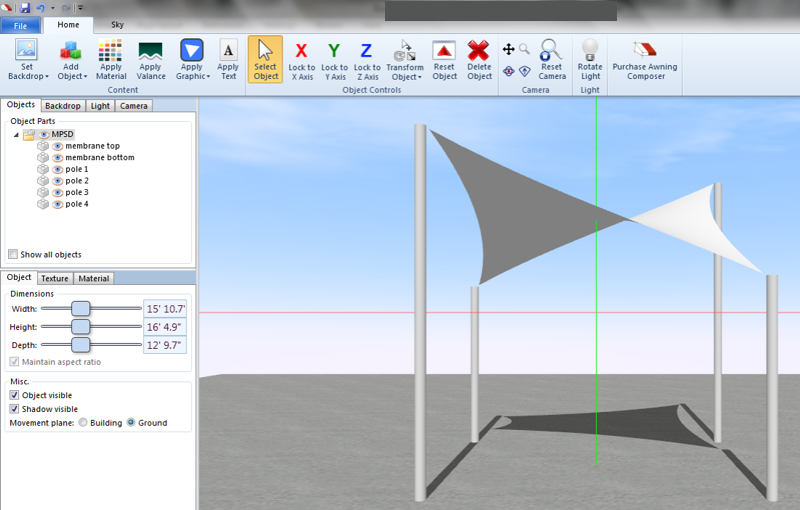
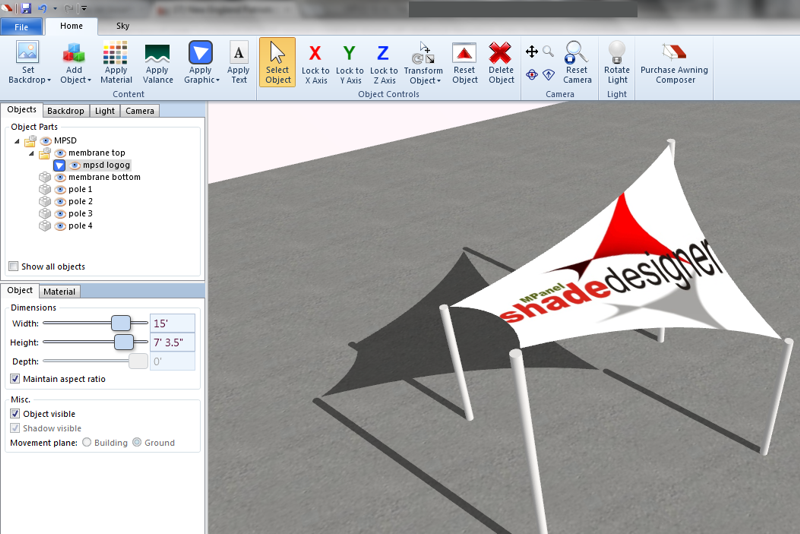
After you click Return to Awning Composer, your sail will show up in Awning Composer.
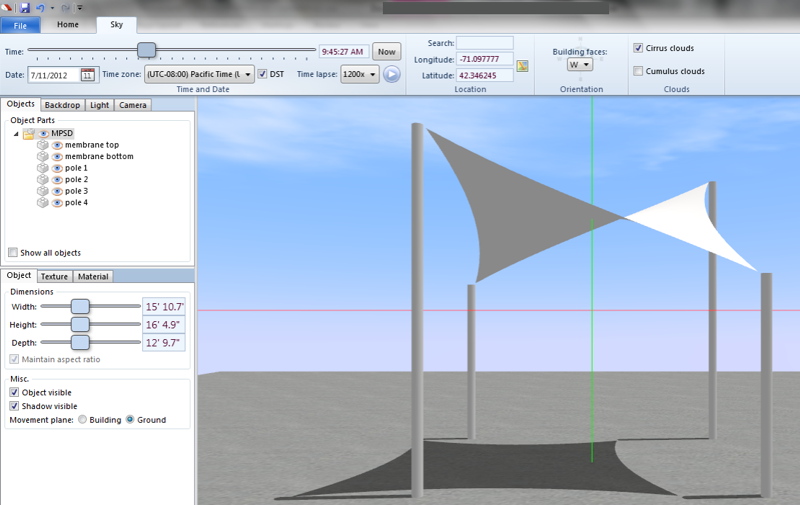
After this, you can decide at what time and date you would like to see the shadow.
Awning Composer allows you to add any color to your sail, and it also allows the designer
the ability to add graphics to their sail. To add a graphic, simple go to the Apply Graphic
menu, then select Open From File.